 |
 Home Tutorials
Beginners Classes Home Tutorials
Beginners Classes
Cutouts&Chiseled Buttons and Using Hot Wax
|
|
|
Making
Cutouts&Chiseled Buttons
and Using Hot Wax
Created by: Charith
Modified by: PSPUG Learning Center
and the Prof
|

|
|
|
Let's make Different Types of Buttons for use on your webpage. We
will explore using the Cutout effect, the Chisel Effect and the
Hot Wax Coating Effect.
  
|
|
|
|
Basic Set Up
|
|

|
Set Palette Colors:
-
PSP5&PSP6:
- Foreground = Light Blue (R192, G192, B255)
- Background = Darker Blue (R160, G160, B255)
-
PSP7:
- Styles Boxes = Solid Color
(Click on Right Arrow and Click on Brush Icon)
- Textures Boxes = Null
- Lock = Checked
(Click on Right Arrow and click on Null Icon)
- Foreground = Light Blue (R192, G192, B255)
- Background = Darker Blue (R160, G160, B255)
|
|
|
Create a New Canvas:
- New Canvas in Pixels
- Width = 165
- Height = 65
- Resolution = 'doesn't matter'
- Background Color = Transparent
- Image Type = 16 M Colors (25 bit)
- Click on OK
|
|

|
- Use FLOOD FILL Tool
-
PSP7: (Only Blend Mode and
Match Mode will need to be set as rest has been
set when setting the Color Palette)
-
PSP5: (Use OPTIONS Button
to set Blend Mode)
- Fill Style = Solid Color
- Blend Mode = Normal
- Match Mode = None
- Tolerance = 0
- Opacity = 100
- Paper Texture = None (PSP6 only)
- Left Click on Canvas for the FOREGROUND Color
|
|
|
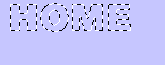
Write Text: (Click on the TEXT Tool - Icon Looks like an 'A')
(We will use HOME in the example. However,
you may want to use your name or any other text. For the
Font Style we will use Arial Black but you may use any other
fat font style.)
-
PSP7: Width = 1 and Line Style = Single Line (default)
- Click on Canvas
- Name = Arial Black (or any text wanted)
-
PSP5: Style = Bold
- Script = Western
- Size = 28
-
PSP6: Text Effects = Click on Foreground Color
-
PSP7: In Styles, Stroke = Null, Fill = Foreground Color
-
PSP7: In Textures, Both = Null
-
PSP7: Click on 'B' (Bold)&Alignment = Center
- Floating = Checked (Not in PSP5)
- Antialias = Checked
-
PSP5: Alignment = Center
-
PSP6&7: Auto Kern = Checked (Not in PSP5)
- Enter Text = HOME (Capitalized)
- Click on OK
|
|
 |
- To Center the Text, use either of the following:
- Place Cursor in Text and when changes to double arrows,
Hold Mouse Button Down and Drag to position wanted.
- Use the SHIFT Key + ARROW KEYS (on keyboard) to move text.
- Save Selection (Text Outline)
- Use file menu, SELECTIONS || SAVE TO ALPHA CHANNEL
- Click on OK
- Click on OK again
- Deselect (Selections || None or Control+D)
-
PSP7 only: Click on FLOOD FILL TOOL and flood fill to remove the text
and return to a solid color.
Note: We will be using the text selection a few times to
illustrate the Cutout and Chisel Effects. Rather than writing
the text again and again in new canvas, we will use the
Alpha Channel to recall the text we just saved. This approach will work
as long as the PSP canvas is open and the one from which the Alpha Channel was saved.
So, Let's Move on now and Explore Using the Cutout Effect.
|
|
 |
Using the CUTOUT Effect
The Cutout Effect creates a look of a 'Cutout' of the
shape (selection) used on the image surface. When you
select the CUTOUT Effect, there is a CUTOUT OPTIONS
Window. So Let's first explore the various options and
how they work.
- PSP5&PSP6: Click on IMAGE || EFFECTS || CUTOUT
- PSP7: Click on EFFECTS || 3D EFFECTS || CUTOUT
- Before we set values, let's explore the Options
- In the Attributes Area, we can set
--gt; Interior Color
--gt; Shadow Color
--> Opacity of the cutout
--> Blur factor for the cutout
- In the Offset Area, we can set
--> Vertical and Horizontal Offsets
- The Interior Color, when set by checking the Fill Interior
with color, is used at times to paint the text a different
color when it will accentuate the cutout effect. If it is
NOT set, when you use it, the colors within the text selection
will be deleted.
- The Shadow Color is a key option and often will be set
to a Black Color.
- Opacity is a switch that will lighten the effect
- Blur will blur the effect with a little blur (small numbers)
to larger blur effect (larger numbers)
- The Offsets will place the shadow dependent upon whether
the number is positive or negative. Positive numbers will
place the shadow top (vertical)&left (horizontal) when
positive and bottom (vertical) and right (horizontal) when
negative.
- One can create some stunning effects using the Cutout
feature so explore it at your leisure using various values
and options.
|
|
|
|
Illustration #1: Basic Technique #1
-
For All Examples:
- Use the Canvas with the foreground color as canvas color.
- Use SELECTIONS || LOAD FROM ALPHA and click on OK for the Text Selection.
- Use WINDOWS || DUPLICATE to start a New Canvas with the Text Selection.
- Then Use the CUTOUT EFFECT
(PSP5 & 6: Image || Effects || Cutout)
(PSP7: Effects || 3D Effects || Cutout)
|
|
 |
- Set These Values in the cutout window:
- Fill Interior with Color = Checked
- Interior Color = Foreground (R192, G192, B255)
- Shadow Color = Black (0, 0, 0)
- Opacity = 100
- Blur = 6
- Vertical and Horizontal Offset = 3
- Click on OK
- Use DROP SHADOW EFFECT
(PSP5 & 6: Image || Effects || Drop Shadow)
(PSP7: Effects || 3D Effects || Drop Shadow)
- Color = White
- Opacity = 100
- Blur = 1
- Vertical and Horizontal Offset = 1
- Click on OK
- DESELECT (Selections || None or Control+D)
- Using this Technique, we have created a
Cutout Effect on a single layer. In the next
Technique, we will use multiple layers to
have a bit more control over the effect.
|
|

|
Illustration #2: Basic Technique #2
In this technique, we will only use the CUTOUT Effect and
not use the Drop Shadow Effect. And, we will use two
additional layers for the cutout effects.
- Highlight the Original Canvas which should have the
text showing. If not, use Selections || Load from Alpha.
- Duplicate it: Windows || Duplicate
- Create a New Layer labeled Black Cutout
(Click on the New Layer Icon)
- Use the CUTOUT EFFECT and the same Values present from
above, except Fill Interior with color = Unchecked.
- Create a NEW LAYER labeled White Cutout
- Use the CUTOUT EFFECT and set these values:
- Fill Interior With Color = UNCHECKED
- Shadow Color = WHITE
- Opacity = 100
- Blur = 3
- Vertical and Horizontal Offset = -1 (minus 1)
- DESELECT (Control+D)
- Note that the effect is very much the same as above.
However, we have much more control now.
In Your Layer Palette, you can use the Opacity Switches to
lower the opacity of a layer. You can soften the black shadow
by reducing the opacity.
You can also can also change the top color (layer 1). Just
use Selections || Load from Alpha, then Selections || Invert
and then use Flood Fill and flood fill layer 1 with the background
color. The text colors remain with the foreground color.
|
|
|


|
Lets Make Buttons from these images so you can use
them on a Web Page.
- Select the First Image of a single layer.
- Use BUTTONIZE:
--> (PSP5 & 6: Image || Effects || Buttonize)
--> (PSP7: Effects || 3D Effects || Buttonize)
- Height = 12
- Width = 12
- Opacity = 100
- Transparent Edge = Checked
- Click on OK
- Select the Second Image of three layers.
- Create a New Layer at top labeled 'Buttonize'.
- Use BUTTONIZE again but with this Change:
- Change Height to its Maximum
- Leave other values as set
- Click on OK
- Then in the Layer Palette set the MODE OPTION to LUMINANCE
which creates a more uniform blue shadow.
(Note: You can play around with the Buttonize Values to
create other types of buttons. Try setting the Height to 6 and
width to it's maximum or a value of 32 for a different effect.)
|
|
|
|
Using the CHISEL Effect
The Chisel Effect creates a carved border around the
selection, or in our example, the text giving it a
rough raised appearance.
When you click on the Chisel Effect, the Chisel Options
window will allow you to set some values:
- Size = which controls the size of the border around
the selection.
- Transparent, if checked = setting the border around the
letters to transparent to allow colors from a lower layer
to show through.
- Background, if checked = setting the border to the current
background color with a black border.
|
|

|
Illustration #1: Chisel Effect on one layer.
- Set Foreground = Darker Purple (R160, G160, B255)
- Set Background = Lighter Purple (R192, G192, B255)
- New Canvas = 165 x 65 Transparent&16M
- Flood Fill (Solid) with Background Color
- Use TEXT Tool (as used previously) but set the size = 22
- Center the Text
- SELECTIONS || SAVE TO ALPHA
-
PSP5&PSP6: IMAGE || EFFECTS || CHISEL
-
PSP7: EFFECTS || 3D EFFECTS || CHISEL
- Size = 14
- Background Color = selected
- Click on OK
- Deselect (Control+D)
|
|

|
Illustration #2: Chisel Effect with Drop Shadow
- Continue with same Canvas
- Selections || LOAD FROM ALPHA to get text selection
around the text.
-
PSP5&PSP6: IMAGE || EFFECTS || DROP SHADOW
-
PSP7: EFFECTS || 3D EFFECTS || DROP SHADOW
- Color = Black
- Opacity = 100
- Blur = 4
- Vertical&Horizontal Offset = 1
- Click on OK
- Deselect (Control+D)
|
|

|
NOTE: Notice that with the Drop Shadow one is able to
get a more defined area for the text.
Illustration #3: Chisel Effect with Transparent Background
- Use the Same Values as for Illustration #1 with
TRANSPARENT CHECKED rather than Background Checked in
the Chisel Options Window.
- Make sure the Text Selection has been Saved to Alpha Channel.
- After the Chisel Effect, Deselect
- (You may find a transparent area around the text.)
- (If so, just create a new layer, drag it to be the bottom layer, and flood fill with the background color.)
- Then Load From Alpha the text selection
- Use the DROP SHADOW effect with these values for
Opacity and Blur.
- Opacity = 40
- Blur = 2
|
|


|
Now, let's set the Buttonized Border for these images.
PSP5&PSP6: Image || Effects || Buttonize
PSP7: Effects || 3D Effects || Buttonize
- Illustration #1: Height&Width = 8&Opacity = 60
- Illustration #2: Height = 6&Width = 24&Opacity = 60
- Illustration #3: Height = 32&Width = 12&Opacity = 60
|
|

|
As an extra illustration, using techniques with the Air Brush
one is able to create a marble effect for the button. Just
experiment and have fun with the chisel Effect.
|
|
|
|
Using the Hot Wax Coating Effect
HOT Wax Coating creates an effect of a waxed look
over the image by applying a layer of color in
varying degrees of transparency. This transparency is
determined by the contour of the image. The Hot
Wax Coating also uses the current foreground color
that is selected to apply this layer over the image.
Let's experiment with the hot wax coating.
First, let's set the basic image:
|
|

|
- Set Colors: (Solid)
- Foreground = White (255, 255, 255)
- Background = Burgundy (192, 0, 0)
- New Canvas: 165 x 65 White Background, 16M Colors
- Add Noise:
- PSP5&PSP6: Image || Noise || Add
- PSP7: Effects || Noise || Add
- Noise = 100%
- Random = Checked
- Buttonize:
- PSP5&PSP6: Image || Effects || Buttonize
- PSP7: Effects || 3D Effects || Buttonize
- Height = 15
- Width = 15
- Opacity = 62
- Solid Edge = Checked
- Add Text:
- (See Above for Cutout for setting text)
- PSP7: Reverse Foreground and Background colors by clicking on double arrow so that White is background. Then, when clicking on TEXT, set Stroke = Null&Fill = White.
- Font Size = 22
- Font Color = White
- Click on Ok
- Save Selection To Alpha Channel
- Deselect
- PSP7: Reverse Foreground and Background Colors by clicking on double arrow so that White is again Foreground.
|
|

|
- Now, let's apply the Hot Wax Coating:
-
Make sure Foreground is White and Background is Burgundy
-
PSP5&PSP6: Image || Other || Hot Wax Coating
-
PSP7: Effects || Artistic Effects || Hot Wax Coating
|
|
|
|
Sometimes the result might be a bit darker than wanted. One
may want to Adjust the Brightness and Contrast a bit. Play
with the settings to get your desired result:
- Using Colors || Adjust || Brightness/Contrast
- Brightness = 10%
- Contrast = 20%
|
|
|
|
Experiment with these Effects. The more you explore, the more you
will find new and exciting images. Have fun. :o)
Next week we will be covering Deformation, Filters and Screen Capture, so stay tuned.
|