 |
 Home > Tutorials >
Effects v7 > Home > Tutorials >
Effects v7 >
ScareCrow |
||||
|
|
||||
| For this tutorial, we will be working with various tools and textures to create a Scarecrow scene. | |||||
 |
Set Color Palette as follows: |
||||

|
Create a new image: – Dimensions = 400 x 400 pixels – Resolution = 72 pixels/inch – Background color = Foreground color – Image type = 16.7 million colors (24bit) |
||||
| Go to Effects || Texture Effects || Fine Leather. Select the "Small Cracks" preset. |
|||||
 |
Tip: Place the cursor on the bottom right edge of the image window. Drag it out and down so the edges of the image can be seen. |
||||

|
Making the HeadGo to Layers || New Raster Layer. |
||||

|
Activate the Selection tool and set as follows: – Selection type = Circle – Feather = 1 – Antialias = checked |
||||
 
|
Using the status bar at the bottom left as a guide, hold down the left mouse button and draw an 80x80 circle. The coordinates to watch are located in the first set of parenthesis just after the "=" sign. You may not be able to lock exactly on 80x80. Most likely you'll either get 79x79 or 81x81 ... That's good enough! Note: The location of the head on the background isn't important at this time. Final placement can be made at the end of the tutorial as final adjustments. |
||||

|
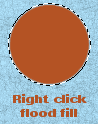
Activate the Flood-Fill tool and set as follows: Right-click to flood-fill the selection with the background color. |
||||
 |
Go to Effects || Texture Effects || Weave. Set as follows: Click on OK when finished to apply Weave. |
||||
| Go to Layers || Duplicate. Make sure the "Copy of Head" layer is activated. |
|||||
 |
Go to Effects || 3D Effects || Cutout. Set as follows: Click on OK to apply the effect. |
||||
 
|
Open the Layer palette if it isn't opened already. Set the Blend Mode of the "Copy of head" layer to "Luminance". Tip: To find this, click on the right-arrow beside 'Normal' in the layer options. Slide the Opacity to 85. |
||||
 |
Hide the "Background" layer. Activate a layer that is not hidden. |
||||

|
Go to Layers || Merge || Merge visible. Unhide the "Background" layer. Rename the merged layer to "Head". |
||||
|
Creating the hatSet Color palette as follows: Tip: If you right click on the Foreground and Background palette, a "Recent Color History" box will pop up. You'll be able to find the colors you've used faster. |
||||

|
Activate the Preset Shapes tool and set as follows: – Shape = Ellipse – Retain style = unchecked – Antialias = checked – Create as vector = checked – Line width = 1 – Line style = Default line |
||||
 |
Using the status bar as a guide, draw an ellipse of approx. 110x30. Place the cursor over the rotate node and rotate the hat to give it a slant along the head. Go to Layers || Convert to Raster. |
||||
| Still using the Preset Shapes tool with same settings, hold the Shift key down and draw a circle of approx. 75x75. | |||||
 |
Click on the Vector Object Selection tool. Choose "Node Edit" in the Tool Options palette. |
||||
 |
Left-click on bottom node. Right-click and choose Edit || Delete. Right-click again. Choose "Quit Node Edit". |
||||
 
|
Move the half circle into position on the hat rim and rotate it (using the rotate node like you did with the rim) to fit the angle of the rim. Convert to Raster (Layers || Convert to Raster). Activate the Mover tool. |
||||

|
Creating the Hat BandActivate the Zoom tool and enlarge the half circle image. We're going to use the Freehand (Lasso) tool to draw a rectangle along the bottom edge to create a hat band. |
||||

|
Activate the Freehand (Lasso) tool and set as follows: – Selection type = Point to Point – Feather = 0 – Antialias = checked |
||||
 |
"Point-to-point" the shape of the "hat band" along the bottom edge. | ||||

|
Set Foreground color to yellow. Activate the Floodfill tool and fill inside the selection. Go to Effects || Texture Effects || Texture. Go to View || Normal Viewing (1:1). Activate the Mover tool and position the cap back into place on the rim. Hide the "Head" and the "Background" layer. |
||||
|
|
Making the PostChange the Foreground and Background colors to White. Activate the Preset Shapes tool. |
||||
 |
Watching the status bar, draw a 16 pixel wide rectangle that starts about 1/2" from the top of the background and extends to the bottom of the image. Convert to Raster (Layers || Convert to Raster). Go to Effects || Texture Effects || Sculpture. Go to Layers || Duplicate. Go to Image || Rotate: Adjust the stakes so they are centered. |
||||
|
|
Hide Head, Hat and Background layer. Activate an unhidden layer and go to Layers || Merge || Merge visible. Rename the merged layer to "Post". |
||||
|
|
Clothing for the ScarecrowActivate the top layer. |
||||

|
Select the Freehand (Lasso) tool. Draw a shirt outline for the scarecrow in the same manner the hat band was created. The idea is to trace a basic clothing outline. It can be any shape you'd like: Long or short sleeve, tank top. You can make your scarecrow a girl! Whatever you'd like it to wear. When finished right-click to set. Floodfill the selection with white. |
||||
| After you fill in your clothing outline, you may have a gap or hole at the neck area. To fill that in, we are going to draw a simple triangle and use the same Weave and Cutout techniques as for the head. | |||||

|
Set the Foreground and Background colors to: Red = 181, Green = 83, Blue = 36 (HTML code: #B55324). Activate the Preset Shapes tool and choose Triangle for the shape. Draw a triangle large enough to fill in the gap. Convert to Raster. Go to Effects || Texture Effects || Weave. Duplicate the "Triangle" layer. Go to Effects || 3D Effects || Cutout. Change the blend mode of the "Copy of Triangle" layer to "Luminance". Slide the Opacity to 85. Hide all layers except the "Triangle" and "Copy of Triangle" layers. Merge visible layers (Layers || Merge || Merge visible). Unhide all layers. Rename the merged layer to "Neck". |
||||
Placing a Drop Shadow on the Head for DepthActivate the "Head" layer. Go to Effects || 3D Effects || Drop Shadow. Set as follows: |
|||||
 |
The Clothing, ContinuedActivate the "Shirt" layer. Go to Effects || Texture Effects || Texture. Set as follows: Leave all other settings for "Dross" unchanged. |
||||

|
Change the Foreground color to Black. Create a new layer and name it "Pants". With the Freehand (Lasso) tool (settings unchanged) "freehand" in the pants. Floodfill with black. Deselect. Drag the "Pants" layer down to rest above "Post" layer. |
||||
 
|
Finishing TouchesActivate the top layer. Foreground color = R=243, G=243, B=37 (HTML code: #F3F325) Click on the Paint Brush tool. Set as follows: Paint buttons down the front of the shirt. Create a new layer, name it "Collar". Activate the Freehand (Lasso) tool. Activate the Floodfill tool. Create a new layer. Name it "Face". Set Foreground and Background color = Black. Activate the Preset Shapes tool. Set as follows: Select the triangle to make the first eye. Go to Layers || Duplicate to make the 2nd eye. Use the Mover tool to position it to the other side of the face. Activate the Preset Shapes tool again. Make a smaller triangle for the nose. Use the Mover tool to position. Activate the Paint Brush tool. Settings as follows: Freehand a line for the mouth. Add a few stitches if desired. Position all the components to the desired location. |
||||
| ALL DONE!! I look forward to seeing what you created and I hope you enjoyed this tutorial ... :) | |||||

