 |
 Home > Tutorials >
PSP 8 Tutorials > Home > Tutorials >
PSP 8 Tutorials >Lace Doily |
|||
|
|
|||
| For those of us who have spent many hours searching for lace and lace doilies I think this tutorial is going to be a help. We will be using a texture, Geometric effects and the Kaleidoscope effect. | ||||

|
Start with a new image: We will remove the light blue background later. It's purpose is to be able to see what you are doing. |
|||
   
|
Set your Foreground Material to Solid Color = White. Click into the Foreground Materials Box, check the Texture Box and select the 'Polka Dot' texture: – Angle = 0 – Scale = 100 |
|||
|
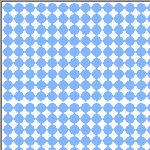
Create a new layer and name it 'Lace'. Flood-fill it with the white texture. Click about 10 times to make the white stronger. You should have a square image with white dots on a colored background. |
|||
 |
Go to Effects || Geometric Effects || Circle and reset to default. Then set: Go to Image || Resize: Click on OK. |
|||
 |
Go to Effects || Reflection Effects || Kaleidoscope: Click on OK. |
|||
|
The lace is now made. If you want, save your lace doily as a Picture Tube: Highlight the bottom layer in your Layer palette (named 'Background' and delete it. Go to Edit || Copy (Ctrl+C), then to Edit || Paste || Paste As New Image (Ctrl+V). Then go to File || Export || Picture Tube, just name it and click on OK. Your image is now a tube and you can use it with the Picture Tube tool. |
||||

|
Let's make a snowflake-like ornament using similar techniques: Create a new image with the same settings as the first one: Hold your Shift key down and click on the New Image icon (that way your new image is set the same way as the one before). Create a new layer and flood-fill it with the same pattern about, 10 clicks. Use the same Geometric effect like before (Effects || Geometric Effect || Circle). Then go to Image || Resize with the same values. Go to Effects || Reflection Effects || Kaleidoscope and change only these values: |
|||
|
You could also save this image as a tube using the same techniques as described earlier. Experiment with different Kaleidoscope effects values to get different designs for doilies and snowflakes. Enjoy! |
||||

