 |
 Home
>
Tutorials
>
Basics > Home
>
Tutorials
>
Basics >Simple "Yahoo!" Style 3D Buttons |
|||
|
|
|||

|
Make a new image: go to File || New: Width = 100 Height = 100 Background Color = Black (you can use any color). |
|||
 |
Choose white as your foreground color and your button color as background color. | |||
 |
PSP 5: Click on the Shapes tool: Shape = Circle Style = Filled Outline = 1 Antialias = checked |
|||
 |
PSP 6: Click on the Preset-Shapes tool:
|
|||
 |
Place the cursor somewhere in the center (close to 50,50) and draw a circle. | |||
|
Click on the arrow in the Active Colors Panel to flip the colors. | |||
 |
Select the circle using the Magic Wand tool Match Mode = RGB Value Tolerance = 0 Feather = 0 |
|||
 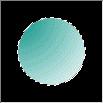
|
Fill in the circle with the Flood Fill tool:
|
|||
 |
Contract the selection: go to Selections || Modify || Contract. I used 8 pixels but you can change it according to the depth of the button you want. | |||
 |
Press "Delete". | |||
|
Flip the colors again. | |||
 |
Fill in the selection using the same settings.
There are some variations you can use: |
|||

