 |
Home
>
Tutorials
>
Tut Title
|
|
|
Glass Topped Box
Created by: Carol UK
|

|
|
|
We are going to make an elegant box, for you to
show off your favorite jewelry or photographs.
|
|
|
Open a new
image:
400x400
Transparent
16.7 Million Colors
|
 
|
First, we
need some silky material for the lining of the box. You can use any texture that
you have to fill the image. I have used the weave effect for mine.
I filled it with a pink that I
liked the look of, and then used these settings.
Gap
size: 1
Width: 30
Opacity: 50
Weave color: Black
Gap color: Black
Fill gaps: Checked
Click OK
|
 
|
It did not
look very shiny and silky, so I used Colors || Adjust... || Brightness/Contrast.
Brightness:
0
%Contrast: 42
Click OK
|
|
Open the layer palette, and first right click on
your layer 1, use rename, and call it silk. Click the button top left to add a
new layer, OK the properties box, and rename this one wood. It needs to be the
highlighted, selected layer, so click on it if it is not.
|

|
Choose the
selection tool. In the Tool Options Palette, set the selection type to
rectangle, feather 0, anti-alias not checked.
Now double click on the
selection tool in the toolbar, and you will get this box. Set the settings as
shown here.
Now
use Selections || Invert so that the edge area of the image is selected. Fill
this edge with any solid color you like - it does not matter what it is because
we are about to hide it, but there has to be a color there. Keep the edge area
selected.
|
 |
Use Image ||
Effects || Sculpture. Choose the mahogany preset and set
these settings. The name of the preset will change to custom as soon as you
start changing the default setting.
Pattern Size (%): 100
Smoothness: 2
Depth: 5
Ambience: 0
Shininess: 30
Colour: White
Angle: 315
Intensity: 50
Elevation: 30
OK
that, and still keep the area selected.
|

|
Use Image ||
Effects || Inner bevel and set these settings:
Bevel: 4th from left on
second row
Width: 12
Smoothness: 8
Depth: 5
Ambience: -29
Shininess: 42
Colour: White
Angle: 315
Intensity: 50
Elevation: 30
OK
this, and now you can release the selection by using Selections || Select none
and your image will look like the one below left.
|
 |
Select the
magic wand tool, shown highlighted here, and click in the center of the image.
You should see the area inside the wood selected as shown on the left. If it is,
move on to the next step.
If
it is not selected just like this, check first that your wood layer is still the
selected layer in the layer palette. If it was still the selected layer, then
the magic wand tolerance is wrong. If so, use Selections || Select none to get
rid of your selection, and then in the tools options palette, set the magic wand
tolerance to 50 and click in the center of the image again. Now it should look
like the image on the left.
|
|
|
Open the layer palette, and click the silk layer
to select it. Click the button top left of the layer palette, or click Layers ||
New Raster Layer, to add a new layer
between the two you have and rename it 'shadow'. Click on it to make it the
current layer.
|


|
The first
thing we need to do to get our glass effect is to create a shadow inside the
edge of the wood, to give the image depth. Use Selections || Modify || Expand
and set the number to 5 pixels.
The selection, although you
can see the marching ants now a tiny way into the wood, (not as far as the
selection on the left) is actually operating on the layer below the wood - the
shadow layer - because that is the selected layer. We are going now to fill it
with black, and expanding the selection makes sure that there is no gap showing
around the edge of the wood because the black will go under the wood by 5 pixels
all around.
Fill your selected area with
black.
Now use Selections || Modify
|| Contract and set the figure to 25.
Now use Selections || Modify
|| Feather and set the figure to 45.
Hit the delete key and your
image will look like this one. You no longer need that selection, so
use Selections || Select None.
It
still does not look very glassy, but on the next step we will change all that.
|
|
The key to
making glass look shiny - and glassy - is highlights. Glass will always reflect
the light things around is, and particularly the main source of light. This
might be a candle or a lamp, but by far the easiest light source to use for this
reflection is a window, so that is what we are going to do now.
In the layer palette, click
on your top layer (wood) and add another layer above it. Do not rename this one,
but make it the selected layer. Make the foreground color white
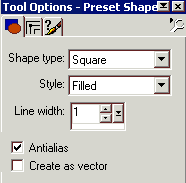
Select the shapes
tool Set the tool palette as follows:
Shape:
Square
Style:
Filled
Antialias:
Checked
Line Width:
1
Create As Vector: Unchecked
|
|
Now draw a tiny little square over to the left.
Although we shall want this over the glass area eventually, it is much easier to
see what you are doing if the square is against the wood at this stage.
|
|
|
Now copy this layer to the clipboard, and paste
it as a new layer three times. Each little square will land right in the middle
of your image, so drag it over and arrange them to look like a tiny window. The
mover tool is selected when you paste as a new layer, so you have only to click
and drag.
|
 |
Go to the layer palette and click on the little
spectacles for the three layers you have renamed. This will switch them all off,
and you will see the silk, shadow and wood disappear from your image, leaving
only the white squares which you can barely see. Select one of their layers,
right click and use Merge || Merge Visible (NOT Merge
All (flatten). Then click on the three pairs of spectacles to switch the
layers on again, and rename the top one, which is now called 'merged' 'window'.
|
|
|
Now use Effects || Geometric Effects || Circle.
|
 |
Click on the deformation tool and a box with square 'handles' on the corners and
in the center of the sides will surround your window. Click on the top center handle and draw it upwards a little, so the window does not look quite so
squashed. Draw the center right handle in a little to narrow it. When you have
it looking something like this one on the right, go to the tools palette and
click apply.
|

|
Now, using the mover tool
drag the window into the glass area, at the side about halfway down. Now we are
beginning to get a glassy look, but we need some more highlights. On the next
page we will add some different ones.
|
|
It is
important for every highlight to have its own layer, because then you can
arrange each one exactly as you want it without affecting the others. So make a
new layer for every highlight, unless you are copy/pasting a previous one as a
new layer. Give them some name that identifies them. I use hl1 hl2 etc (for
highlight 1 etc).
If you look at the light on
our box, at the top left corner of the wood frame, you can see that the light
direction is from top left. That means that highlights at the top and left of
our box should be sharper and brighter than those on the right and towards the
bottom.
We will start with a simple
ellipse. Use the shapes tool and set the Styles as follows:
Shape:
Ellipse
Antialias: Checked
Create as vector: Unchecked
|

|
Draw a small ellipse in the top left corner of
your image
|
 
|
Rotate it
as follows:
Direction:
Left
Degrees: Free: 45
All layers: Unchecked
Click OK and arrange it across the top left corner of
your glass.
|
 
|
We can
copy/paste this highlight as a new layer and drag it down to the bottom right of
the glass. Because that is further away from the light direction we do not want
it to be so sharp and bright here.
So
first use Effects || Blur || Gaussian Blur with a radius of 1.5, and then pull
this highlight's slider on the layer palette back to 75
|

|
Still using the ellipse tool and the Styles and
Textures settings as before, we can add some small circular highlights right in
the middle of the glass. For these little dots I don't mind putting them all on
the same layer, but their own layer as the center highlights, so they can be
moved without disturbing the side and corner ones.
|
 |
For the
final highlight we are going to use the bezier tool. Select the Draw tool, Set
the Styles and Textures and tool palette as follows:
Draw
tool:
Type: Bezier Curve
Width: 5
Antialias: Checked
Create as vector: Unchecked
Close path: Unchecked
|
 
|
Draw across the top right corner of the glass,
and click about a cm to the right and slightly below horizontal of the start
point, and click again about a cm to the right and slightly above horizontal of
the end point. As this highlight is over to the right, use Effects || Blur ||
Gaussian Blur with a radius of 1.5, but as it is at the top of the box we do not
draw the layer slider back to make it transparent.
|
 |
A box has
hinges and a clasp to press to open it. We will give this box gold hinges and
clasp.
Add a new layer above all
the others for the first hinge, name it and make it the current one. Use the
shapes tool and rounded rectangle with the rest of the settings left as is and a
yellow color set as the the foreground color. The
exact shade of yellow does not matter, choose one you like. Line width and style
on the tool palette do not matter. Draw a small rectangle at the top left of the
wood. If it is not quite in the right place you can adjust it with the mover
tool. Then select it.
|
 
|
Use Image ||
Effects || Sculpture. Use these settings, which will cause
the preset name to change to custom:
Presets: Gold
Size (%): 100
Smoothness: 10
Depth: 26
Ambience: 0
Shininess: 56
Color: White
Angle: 315
Intensity: 30
Elevation: 56
OK these settings and the
hinge will look like this.
Now
while the hinge is still selected, copy and paste a copy of the hinge, and place
it on the right side of the box, for the second hinge. Then you should
have something like this.
|
 |
There are
all sorts of shapes in the collection that you can use for a clasp.
I have used Star1, but you can choose whatever you like. Add a new layer for
the clasp. Use the same color as for the hinge to draw it, and the same
settings on the sculpture panel to make it gold. I added a drop shadow to the
clasp (but not to the hinges). Use Effects || 3d Effects || Drop Shadow:
Vertical and Horizontal
displacements: 4
Opacity: 80
Blur 6
Click OK.
Adjust
the clasp position to the center of the bottom frame of the box.
|
|
To finish the hinge, first select the hinge
layer. Then select the Line tool and set the tool palette
Type:
Single
Line
Style:
Stroked
Width:
1
Antialias: Checked (no other boxes checked)
|
 |
Now zoom
in so that you can really see what you are doing. I zoomed to 3:1. Draw two
vertical lines as in the left picture, in black, then change to a medium gray
and draw 2 more to the right of the others and just touching them. Do the
same for the second hinge.
|
 |
This is
the finished box. Whatever you decide to put in it goes on a layer immediately
above the silk layer. You can see what I put in mine on the first page of the
tutorial.
This box does not have to be
square or even rectangular. I have made circular and even heart shaped ones, but
with a curved box you must use the bezier tool to make the hinge shape, so that
it follows the curve of the box. The box can be any size.
It need not be made of wood.
It can be marble, gold, silver, chrome, jade, or any texture you like. The
lining can be any pattern, texture or color you like. The hinges and clasp can
be silver or any other metallic finish. The design of the clasp can be a dingbat
or any shape you like, or even a little groove in the frame that would be pulled
back by a fingernail.
You can add your signature
if you want to - if you want to carve it in like I have, you need to do it on
the wood layer.
So
personalize it, change it, but above all, have fun with it.
|

