 |
 Home > Tutorials > Prof's PSP v7 Effects Tutorials > Home > Tutorials > Prof's PSP v7 Effects Tutorials >(Prof's PSPv7 Effects and Techniques) > Buttonize Effect |
|
|
||
|
The 3D Effects use 'Shadows' that gives images and shapes dimension and depth. Tonight we explore using 'Buttonize' that is a quick and easy way to create buttons. Learning to use the options, one is also able to create cylindrical shapes that are able to be used as side or top borders on web pages and in rich text email. Buttonize has these Options:
– Height = Top/Bottom Shadowing Effect Buttonize is able to be used on a single layer or on its own layer. The Shadow Color is the Background Color set. Buttonize does not use the Styles or Textures boxes in the Color Palette. Buttonize works only with Rectangular (or Square) Shapes. |
||

|
A. Basic Button1. New Canvas: 200 x 200, White 16 M Colors2. Set Colors: Foreground = White, Background = White 3. Use: Selection Tool – Rectangle, Feather = 0, Antialias = Unchecked – Draw a Rectangle in Center of Image. 4. Use" Effects > 3D > Buttonize (Default -- Click on default button at bottom right of Buttonize Window). 5. Deselect [Control+D] You have just created a basic Button using a Selection. Now, if you repeat the 'Buttonize' on a new canvas without a selection, your button will be at the edges of the canvas. |
|
  Original Black Palette Background   Green Palette Background Green Canvas |
B. Basic Button using Palette ColorsIn our first example, the button colors are shades of black. We had set our background to White initially. If we now set our palette background color to Black, and set the 'Buttonize' using default values, the button will be darker.Then, if we set our palette background color to a color, such as pastel green (192,255,192) and set the 'Buttonize' with no changes in its values, our button now has a green border. Finally, in our Basic Button exploration, start a new canvas and flood fill it first with the same pastel background color. Then 'Buttonize' it with no changes in palette colors or buttonize values. |
|

|
C. CommentThe basic 'Buttonize' is very easy to use and is an effective way to create some simple yet interesting buttons. You can create a button using a selection, or using the whole image. You can give the button some color by using different background colors on the basic colored canvas. |
|
|
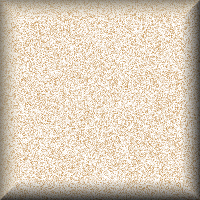
D. A Final Basic Button With TextureBefore we move on to some techniques in using the Buttonize Effect, let's first create one new image, give it 'Noise' (from last lesson) and then buttonize it for a textured button effect.
– New Canvas: 200 x 100 pixels, White, 16 M colors.
|
|
|
|
TIPS and TECHNIQUESThere are some interesting effects one may achieve by using the options (values) as well as using 'Buttonize' on it's own layer. |
|
 |
Option #1 -- A Horizontal Cylindrical ButtonFor these examples we will use a Palette Background = White. (You may use any color you wish.)
1. New Canvas: 200 x 100 White, 16 M Colors Comment: This Technique produces a horizontal cylindrical button. However, if you were to try to use this as a top border button, it would not tile seamlessly because the left and right edges have a black line. We eliminate this line by changing the canvas size:
3. Use: Image || Canvas Size Now your image is seamless. |
|
 |
Option #2 -- A Vertical cylindrical Button1. New Canvas: 100 x 200 pixels, White, 16 M colors2. Buttonize: – Height Minimum (1) – Width = Maximum (50) – Opacity = 100% – Transparent Edge = checked
3. To make the image seamless use Image || Canvas Size: Comment: You may explore using different colored canvases and different colored backgrounds. Also, if you change the values you can change the button size as well as it shading. |
|
|
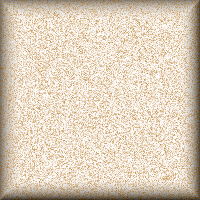
Option #3 -- Buttonize on it's Own LayerAnother technique is to use the Buttonize Effect on its own Layer. In this fashion you are able to alter the color of the button edge by using the 'Transparency' Mode. Doing so will cause the button shading to pick up the color of the background image (not the palette background color). And, by using the Opacity Switch you can also change the darkness of the button edges.Let's use the Textured Image as above:
1. New Canvas: 200 x 200 White, 16 M Colors. That is all there is to this transparency technique. You can try it with different background colors on white canvas or colored canvas. Making buttons is easy with Buttonize. Enjoy -- Prof -- |
|

