 |
 Home > Tutorials > Prof's PSP v7 Effects Tutorials > Home > Tutorials > Prof's PSP v7 Effects Tutorials >(Prof's PSPv7 Effects and Techniques) > Cutout Effect |
|
|
||
The Effect Cutout creates a 3D appearance of a selection (shape) being cutout or having depth. It requires two (2) steps: (1)Setting a Dark Color (black) and (2)Setting a Light Color (white), each on its own layer. |
||

|
IntroductionThe values used for the basic options (Offsets and Attributes) will set the Light Source (Top/side and Side/bottom) which can, with care, be set for any angle. However, the basic Light Source directions will be eight (8): (Top, Top/Right, Right, Bottom/Right, Bottom, Bottom/Left, Left, and Top/Left).The Position of the Light Source (Horizon to High Noon) is governed by the values set in the Options.
Available Options: Note: If using Cutout on an image, unless you set the Interior color, one gets a cutout of the center of the selection. Thus, best to use the 2 Layers above the image in which the cutout is being set. |
|
|
|
Exploration and Illustrations |
|
|
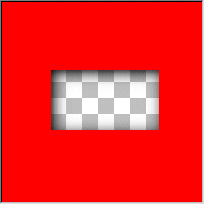
A. Illustration #1:Basic Set up:– 300 x 300 Red 16 M – Then, Promote the Background Layer to a Layer – Label it 'Black' Use Selection Tool and Draw a Rectangle in Center of Canvas. Then use Selections || Save to Alpha the selection.
Use Effects || 3D Effects || Cutout ... We have a square cutout with a transparent area showing. |
|
|
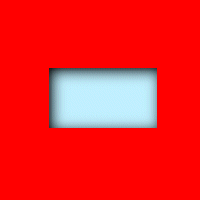
TIP #1: If you Set a New Background Layer (Label it 'BG') below the 'Black' layer and flood fill it with a color, then that color will show through. Try it with any color of your choice. (Pastel Blue: 193, 240, 255)
If you used a light background color you will also notice there is a slightly lighter shadow along the right/bottom part of the cutout. |
|
 |
B. Illustration #2Now, lets Add New Layer above the 'Black' layer and Label it 'White'. Then, get your selection back (Selections || Load from Alpha) and then use Cutout again with these changes:– Offsets = minus 3 – Shadow Color = White – No Other Changes – Click on OK – Deselect Your cutout now looks better, more realistic with light source coming from the top/left corner. Tip: You could add a texture to the Bottom Layer if you wanted. |
|

|
C. Illustration #3Now Lets Fix this Canvas so you will be able to see each part.
1. Highlight the 'Black' Layer and Flood Fill it with Red (removes the black shadow but the white shadow still shows which is ok) Now, you can turn off any layer to get an idea of what each layer does. Also, if you now Move the Cutout White Layer to the Top, you get a bit better Cutout Effect. Tip: You can now play with the Layer Palette Opacity Switch and the Layer Palette Mode Options to get some interesting effects on any layer. (If you want to save that canvas to explore more with it later, go ahead.) |
|
|
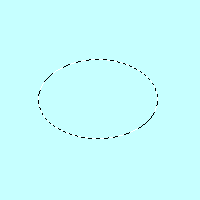
More Exploration and IllustrationsBasic Canvas:– New Canvas, 300 x 300 Transparent 16 M – New Layer, Flood Fill it with Pastel Blue – Use Selection Tool – Draw an Ellipse in Center of Canvas as accurately as possible – Then, then Save it to Alpha. – Create a New Layer for Cutout Black – Create a New Layer for Cutout White
|
|
  #1 - Just Offset Values #2 - Opacity = 50%   #3 - Blur = 20% #4 - Opacity = 50% and Blur = 20%   #5 - Offset = 0, Blur = high #6 - Selection Inverted 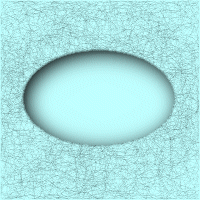
|
Illustration #1 - Exploring the Options(When you have your Cutout Window showing, move it away from your canvas so you can see what is happening. Also, do not use OK to set the cutout. If you do, when we move on, use [Control+Z] to remove the experiment and then you will be ready for the next one.) Start with Offsets both = 0 and Blur = 0 Shadow color = Black and note that these values remove any black Shadow from the Selection. (1) Now to just see how the shadow works, change the values of the Offsets one at a time. Size does not matter though the larger the size the larger the shadow. Also note by varying the plus/minus values you can get the shadow to move around the shape (sort of). (2) Set Offsets to about 4 (Still only working with black). This time vary the Opacity to see how it affects the shadow. (The lower the setting the lighter the shadow.) (3) Return Opacity = 100 and now vary the Blur setting to see how it works. Note that the higher the blur, the more area is shadowed. (4) Vary both the Blur value and the Opacity value. Notice in combination one can soften the effect creating some neat options. (5) Now set Offsets both = 0 and use high value for blur and vary opacity to get a neat effect. This specific technique creates a 3D look to the shape. (I use this one often.) (6) Cancel the Cutout. Then use Selections || Invert to invert the selection. Then, use Cutout again with offset = 0 and blur very high. Vary opacity for another very neat effect. This effect creates a 3D look surrounding the selection. (7) Now, Play with the Offset values and lower the blur value considerably to get another very neat effect. In one easy step you have create a buttonized frame with a raised looking selection. Note: With just these few steps, you have numerous ways to either cutout a selection (a shape) or create interesting shadows that give a 3D look to a canvas. You could add textures to the background color or just add texture to inside the shape, or just outside the shape. |
|
|
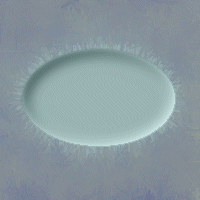
Illustration #2 -- A Final Example.First just Cancel the Cutout and then Use Selections || Invert to get back to the original selection. Lets Do a nice Cutout of this Shape.
Highlight the Cutout Black Layer with these values:
Highlight the Cutout White Layer with these changes: In Both Layers set the mode = Luminance. Notice: Particularly evident on the black shadow side the edges are ragged. You can smooth these out with this technique:
– 1. Get your selection Back: Selections || Load from Alpha Now you can play with giving the background a texture or use the selection both inverted and not to give sections of the background texture. Experiment and have fun. Try 'Soft Light' on the Background Colored layer. Have Fun! -- Prof -- |
|
