 |
 Home > Tutorials > Prof's PSP v7 Effects Tutorials > Home > Tutorials > Prof's PSP v7 Effects Tutorials >(Prof's PSPv7 Effects and Techniques) > Deformation Shadow Effect |
|
|
||
|
Creating Shadows of shapes (selections) using the Drop Shadow Effect creates a raised image as we explored last week. Although using the Drop Shadow creates a 3D effect, using the Deformation Tool and a Colors || Adjust menu item allows us to create a perspective shadow effect that is quite realistic. When using the Deformation Tool, a box with handles is created around the selections (image). By using this handles one is able to deform the image or shape into a variety of different shapes. To use the deformation tool, one also uses either the Shift Key or the Control Key or both the Shift and Control Keys. And, dependent upon which handle is use, these keys will allow you to shape or deform parts of the image. We will use the Deformation Tool to create the perspective shadow and with this tool we have complete control of setting the light source and its position from the horizon. Using other features of the Palette Layer and the Blur Effect we also set the intensity of the light source. |
||
 
|
IllustrationsNew Canvas:– 300 x 300 pixels, White, 16 M Colors – Promote 'Background' to a 'Layer' – Create a New Top Layer. Comment: Many 3D effects require a layer. Thus, we promote the background to a layer.
Use: Selection Tool Draw a Rectangle that is taller than wide in the center of the canvas. Then, Flood Fill the Selection with a color of your choice (Pastel Blue - 193, 229, 255). Do NOT Deselect yet.
|
|

|
Illustration #1 -- The Drop ShadowBefore exploring the Perspective Shadow, let's create on Drop Shadow:– New Layer – Effects || 3D || Drop Shadow – Vertical Offset = minus 40 – Horizontal Offset = plus 50 – Opacity = 100 – Blur = 70 – Click on OK – Deselect [Control+D] Turn off layer for now and later when the Perspective shadow #1 is completed, just compare this layer with that one. |
|
|
|
Exploring the Deformation ToolWe will just explore a couple of features of the Deformation Tool, as there are many different options available using the handles and the Shift/Control Keys singularly or together. At some point explore all the various options to understand how to use this powerful tool. |
|
|
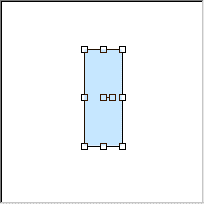
Feature #1: Deformation Tool -- Centering/Moving Images
– Highlight the Layer with the Rectangle This Technique is very useful in moving any object easily and fairly accurately. |
|
|
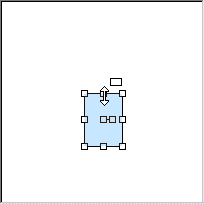
Feature #2: Exploring the Handles with Shift or Control Key to Deform the Shape. A. With Mouse, click on the Top Middle Handle and hold mouse button down. – Move the mouse up or down to increase or decrease the Size of the rectangle. Note that you are also able to move all the way down to get a flip image. – When you have completed the deformation, click in the Tool Options Deformation window on the Apply Button to set the deformation or the Cancel Button to start over. |
|
 Using Shift key  Using Shift and Control Keys |
B. With Mouse positioned on the Top Middle Handle, click and hold down the mouse button and use the Shift Key. – You can now drag the image either to the Right or the Left to slant the image. – If you also use the Control Key with the Shift Key you can deform the image in both a right/left and an up/down fashion.
|
|
 Using Control key  Using Shift and Control Keys |
C. With Mouse positioned on a Corner Handle, click and hold down the mouse button and use the Control Key. – You can now drag the image either to the Right or the Left or Up or Down to widen or narrow image along that edge. – If you also use the Control Key with the Shift Key you can deform the image just at that handle or corner.
|
|
|
|
Creating a Deformation ShadowTo create a deformation shadow we select an object, duplicate it, then change it's color to solid black and finally use the deformation tool to create the perspective shadow. Then we use the Blur Effect and the Layer Opacity switch to create the softness of the shadow.In creating the Perspective Shadow, keep in mind the Light Source as that will govern how we use the handles to set the shadow wanted. We will do two examples, one with the light source from behind us and to the bottom left corner of the canvas and another with the light source from behind the canvas and from the top left corner. |
|
 Deformation Shadow Drop Shadow |
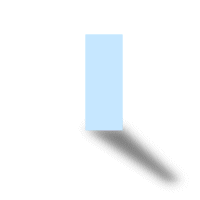
A. Light source: Bottom Left Corner of the Canvas and behind us as we face the canvas. The shadow will move behind the shape and up toward the top right corner of the canvas. 1. Duplicate the Rectangle Layer
2. Use: Colors || Adjust || Brightness/Contrast This setting creates a black image that covers the layer 1 image.
3. Use the Deformation Tool 4. Drag the Top Layer with the shadow below the Rectangle Layer. 5. Soften the Shadow first using Effects || Blur The Blur option I prefer is the Gaussian Blur with value set to around 5. 6. Then in the Layer Palette set the Opacity Switch to about 50 percent. 7. If you have a slight shadow at the bottom of the image and you want to get rid of it click on the Deformation Tool and use your shift key with the up arrow to move the shadow up a bit. 8. Label this layer 'Bottom/Left Shadow' 9. To compare this 'Perspective Shadow' with the 'Drop Shadow' created initially, just turn on the 'Drop Shadow' Layer. |
|
|
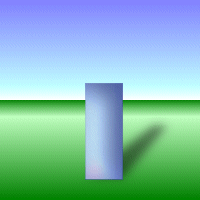
B. Light Source: Top/Left Corner and from behind the Canvas. In this example we will create a shadow that will fall below (in front of the object) and to the right/bottom of the canvas. 1. Turn off the Bottom/Left Shadow Layer 2. Highlight the Rectangle Layer and Duplicate it 3. Again, use Colors || Adjust || Brightness/Contrast to create a Black object 4. Click on the Deformation Tool 5. Click on the top/middle handle and drag it all the way down and below the image creating a black shadow that is about 1/2 size of original and below the rectangle. 6. Click on the bottom middle handle with the shift key and drag to the right to create a shadow of 45 degrees pointing to the bottom right corner of the canvas. 7. Click on either the bottom/right or bottom/left handle with the Control key and drag toward the center to shorten this size to about 1/2 the original size. 8. Click on the Apply Button 9. Again use the Blur Effect and then lower the opacity of the layer. Label the layer 'Top/left Shadow' 10. Again if you want to move the shadow to eliminate any areas that show a white between shadow and object use the Deformation Tool with the shift key and arrows to move the shadow. 11. Drag this Layer also to below the Rectangle Layer. |
|
|
We have now created two perspective shadows. Using the techniques given here will allow you to create any type of perspective shadow of an object. The object can be a shape, text, pictures of people or animals or flowers or what ever. You could enhance these two illustrations by giving the background a texture, a border or other enhancements you enjoy using. There are places for the Drop Shadow and there are places for the Deformation Shadow. You now have an arsenal of tools to create interesting 3D effects. Enjoy -- Prof -- |
|

