
This section is where
you will find techniques to create great graphics using Paint Shop Pro.
If you have a question
or a tutorial you would like to share E-Mail
us and let us know!
|
Intro
to FTP Using WS_FTP
|
©1998
This tutorial created
by Lori Davis
This will be a brief intro
to how to upload files to your remote server using WS_FTP, from Ipswitch.
You can visit Ipswitch at http://www.ipswitch.com/

Note that these instructions
are for WS_FTP Pro 4.5. If you have WS_FTP LE, the WS_FTP window will look
a little different from the screen prints here, but the basic instructions
should work for both the LE and the Pro versions. If you have the newest
Explorer-style version of WS_FTP Pro, the window will look quite different
and some procedures might also be different from those outlined here.
|
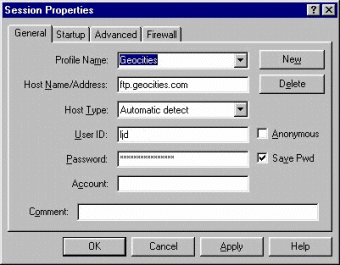
The Session Properties
dialog box will pop up when you first load WS_FTP. If you already
have your server info set up, then select the appropriate server from the
Profile Name drop-down list and hit OK to dial into yourserver. If you
need to set up a new profile for your server, click on the New button and
follow the directions in the next paragraph.
Enter whatever label is
meaningful for you for the Profile Name -- I used "Geocities" here. For
Host Name/Address, enter the appropriate address for your host's FTP server;
you can get that info from whoever is hosting your site. Keep Host Type
at the default setting: Automatic detect. For User ID enter whatever theFTP
server uses to identify you (usually your account login ID), and for Password
enter whatever the FTP server uses as your password (usually your account
password).
|
| |
|
|
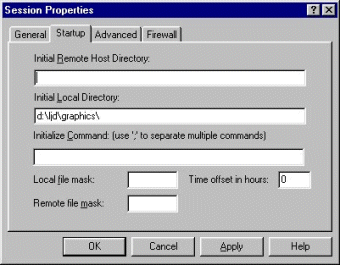
Set your startup folder
for your hard drive by clicking on the Startup tab in the Sessions Properties
window and filling in the path of your startup folder under Initial Local
Directory. Then click OK, and WS_FTP will dial into the FTP server. (You'll
want your startup folder to be the main folder in which you store the files
you'll be uploading. If you have more than one folder that contains files
you'll want to upload, don't worry -- you'll also be able to select other
folders after you've dialed into the FTP server.)
You won't need to fill
in the Initial Remote Host Directory if the server automatically starts
you out in the directory where you want the files to go. If the server
doesn't start you out in the right directory automatically, enter the path
of the host directory/folder you'd like to start out in.
Next, press OK to connect
to the server.
|
| |
|
|
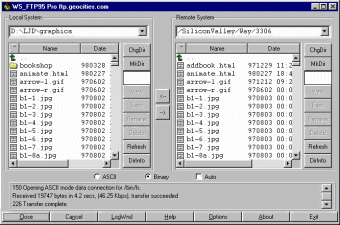
The main WS_FTP window
has two panes: The one on the left (labelled Local System) is for listing
and managing the files on your local machine, and the one on the right
(labelled Remote System) is for listing and managing the files on the host.
Right below those panes
are two radio buttons -- one marked ASCI and the other marked Binary --
and a checkbox marked Auto. These determine what protocol is used to upload
your files. Usually you'll want to keep this set at either Binary or Auto.
Just below that is a status
log area. Here you'll see info on the status of your connection and interactions
with the server. If something you want to read scrolls by too quickly,
you can use the scroll bar on the right to scroll back in the log.
At the bottom of the window
are several control buttons. "Close" closes your connection; you'll press
this button when you're done with your session. "Cancel" cancels an operation
such as an upload or download. "Exit" exits WS_FTP altogether.
|
| |
|
|
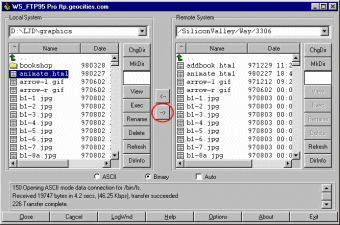
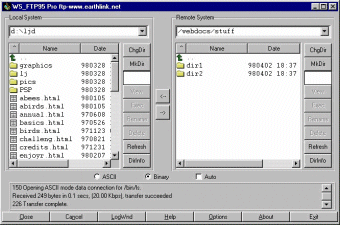
Now for uploading! If
the host directory/folder displayed in the drop-down list in the Remote
System pane is the right one for your upload, you upload your file by selecting
it in the Local System file list (that is, by clicking on its file name)
and then pressing the right arrow that is between the two panes. To upload
multiple files at once, select multiple files in the Local System file
list just as you would in any Win95 file list, then press the right arrow. |
| |
|
|
What should you do if
you have multiple folders on your server and you want to change folders?
Notice that your folders are labelled in the Remote System file list just
as folders are in any Win95 file list. To change to one of your subfolders,
just double-click on the folder's name in the list. |
| |
|
|
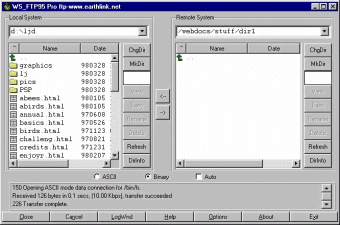
And there you are in
the subfolder. Now you can upload files as before. And if you want to return
to a higher folder, just press the green bent arrow at the top of the Remote
System file list.
Hope that gets you started
on your way to painless FTP!
|
| |
|
When you are finished
viewing this page,
close this window to
go back to the Tutorials index.
|