 |
Home > Tutorials Index > Photo Enhancements Index > FlipAlbum ® Photo Cover 
|
 Download (240kb) Download (240kb)
|
 Email to Friend Email to Friend
|
FlipAlbum ®Created by: WendiM
|
 |
This tutorial extends the challenge of taking photos for your FlipAlbum ® by using those creative talents you have to making your own custom album covers - using your own photographs.
We also have written two other FlipAlbum ® Cover tutorials:
- all made with PSP V7.This tutorial (written for new and experienced PSP7 users) - has been adapted from the Leather Bound Books tutorial created by Doro Sensen and MaggieA1.
This PSP tutorial is broken into the following steps:
- Opening a photo image and duplicating it,
- Creating a new layer, a crease and adding a cutout effect,
- Adding shadows to your crease,
- Duplicating and mirroring the crease layer,
- Reducing the image size,
- Applying an Inner Bevel to the Front Cover,
- Applying an Inner Bevel to the Back Cover.
If your image is a lot larger than this, then you need to reduce its size by either using the Resize and/or Crop functions in PSP. However, before commencing this tutorial, it is essential your image is 360 x 530 pixels.
The following links take you to pages that show you how to either resize or crop your image before commencing this tutorial:
To resize your photo in PSP, click here.
To crop your photo in PSP, click here



To open the photo image and duplicate it:
1. Click on this Download Image link. The system will save
the zip file to your specified folder.
2. After downloading, unzip (extract) the file contained in the zip
(named "/tutorial/html/tutphoto/flip2photo.jpg") - into your working PSP folder.
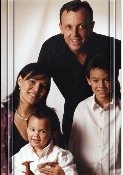
3. Start PSP and open the "/tutorial/html/tutphoto/flip2photo.jpg" image.
4. To make sure that you preserve the original image, duplicate
it [SHIFT+D].
5. Save the duplicated image as flip2cover1.psp [CTRL+S],
then switch back to the original image and close it (without
saving).
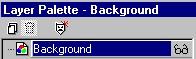
6. Click on your Layer Palette's title bar (to activate it). You will
notice that the image only has one layer - named "Background"
(as shown in the image on the left).
7. In the Layer Palette, double-click on the "Background" layer's
name. The system displays the Promote Layer and Edit
Properties dialog box.
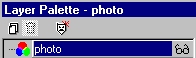
8. In the Name field, rename this layer "photo", then click on the
[OK] button (leaving all of the rest of the settings in this
dialog box as they are). Your Layer Palette should now look like
that shown on the left.
9. Now would be a good time to save your image [CTRL+S].


To create a new layer and add a cutout effect:
1. Click on the Layers > New Raster Layer... menu option
. The system displays the Layer Properties dialog box.
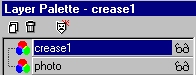
2. In the Layer Properties name field, type your new layer name as
"crease1", then click on the [OK] button (accepting all of the
other default options in this dialog box). Your Layer Palette
should now look like that shown on the left.
3. Double click on your Selection tool. The system displays the
Select Area dialog box.
4. Use the following Select Area settings:
Left = 20,
Right = 35,
Top = 0,
Bottom = 530
Custom size & position button = selected.
then click on the [OK] button to accept these settings. The
system displays a long narrow selection down the side of
your image. This is the crease area (15 x 535 pixels).
If you want your crease a little wider, use the [Undo] button
on the Toolbar, and adjust the Select Area settings in the
previous step.
Your "Selection" should look similar to that displayed on the left.
5. Now we're going to save your selection to an alpha channel (in
which PSP stores the selection within the image) allowing us to
use the same "selection" several times.
Click on the Selections > Save to Alpha Channel... menu
option, then click on the [OK] button twice (to accept the default
options).
6. Next we'll apply a cutout effect, to give the crease a shinier look.
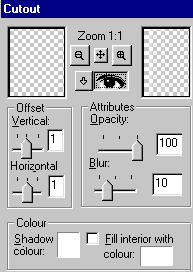
Click on the Effects > 3dEffects > Cutout... menu option. The
system displays the Cutout dialog box (as shown on the left).
7. Change the settings in this dialog box to the following:
Offset Vertical & Horizontal = 1,
Opacity = 100,
Blur = 10.
Shadow Color = white,
Fill interior with color checkbox = unchecked.
then click on the [OK] button to accept these settings. The
system displays a white cutout effect on your selection.
8. Do not deselect your selection but, again, save your image
[CTRL+S].


To add shadows to your crease:
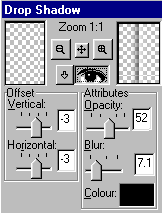
1. To apply our first drop shadow, click on the Effects > 3D Effects
> Drop Shadow... menu option. The system displays the
Drop Shadow dialog box.
2. Use the following Drop Shadow settings:
Offset Vertical = -3,
Offset Horizontal = -3,
Opacity = 52,
Blur = (approx.) 7.1
Color = Black.
Note - if Black is not the default colour, click on
the color box and select Black (top right) from the
Basic Colors in the Color dialog box, then click
on the [OK] button to accept this setting.
then click on the [OK] button to accept these settings. The
system applies your drop shadow down the left side of your
selection, as shown in the image on the left.
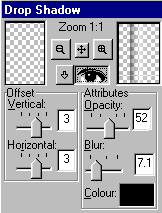
3. To apply a second drop shadow, again click on the
Effects > 3D Effects > Drop Shadow... menu option.
The system again displays the Drop Shadow dialog box.
4. Use the previous Drop Shadow settings (which remain in the
dialog box from the last Drop Shadow), except change the
following settings:
Offset Vertical = 3,
Offset Horizontal = 3.
then click on the [OK] button to accept these settings. The
system displays the second drop shadow down the right side of
your selection.
5. Now [CTRL+D] to deselect your selection, then save your image
[CTRL+S]. Your image should look like that shown on
the left.
To duplicate the "crease1" layer and mirror it:
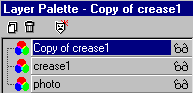
1. Click on the Layers > Duplicate menu option. The system
places a duplicate copy above your "crease1" layer in,
the Layer Palette, naming it "Copy of crease1", and making it
your "active" (highlighted) layer.
Your layer palette should look like that shown on the left.
2. To mirror the crease in the duplicate layer, click on the Image >
Mirror menu option [CTRL+M]. The system mirrors your
crease by placing it on the right-hand side of the image,
as shown here on the left.
To reduce the image size and apply a bevel:
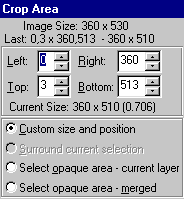
1. Double click on the Crop tool. The system displays the
Crop Area dialog box.
2. Use the following Crop Area settings:
Left = 0,
Right = 360,
Top = 3,
Bottom = 513.
then click on the [OK] button to accept these settings. The
system places a "crop" selection around a portion of your image
- 3 pixels from the top, and 17 pixels from the bottom.
This is to get rid of the top and bottom edges of the creases, and
to reduce our image to the required FlipAlbum ® cover size
(i.e. to 360 x 510).
3. Using the Tool Options - Crop palette, click on the
[CROP IMAGE] button. The system crops the image as specified.
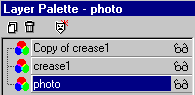
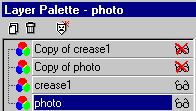
4. Using your Layer Palette, left-click once on your "photo" layer
(to make it the "active" layer, as shown on the left).
5. Using the Layers > Duplicate menu option, duplicate the "photo"
layer. The system adds a new layer named "Copy of photo".
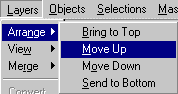
6. Now click on the Layers > Arrange > Move Up menu option.
The system moves the "Copy of photo" layer up above your
"crease1" layer.
7. So that we are clear about which cover we are working on, still
using the Layer Palette - click on the Show/Hide toggle beside
each of the "Copy of crease1" and "Copy of photo" layers
(to hide them), then left click once on the "photo" layer name
(to make it your "active" layer), as shown in the image on
the left.
8. Again save your image [CTRL+S].

To add an inner bevel:
1. Use the Selections > Select All menu option [CTRL+A] (to
select all of your image).
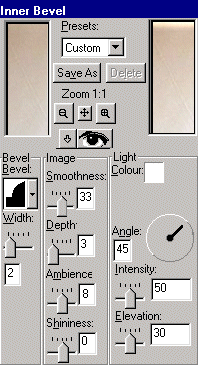
2. Click on the Effects > 3D Effects > Inner Bevel... menu
option. The system displays the Inner Bevel dialog box.
3. Change the Inner Bevel dialog box settings as follows:
Bevel
Bevel = As displayed - top row 3rd from left of bevel types
(click on the down-arrow beside the image to view these).
Width = 2.
Image
Smoothness = 33,
Depth = 3,
Ambience = 8,
Shininess = 0,
Light
Color = white.
Angle = 45 degrees,
Intensity = 50,
Elevation = 30.
and after making these settings, click on the [OK] button.
The system applies an Inner Bevel to the outside edges of your
back cover.
4. Deselect your selection [CTRL+D], then save your image
[CTRL+S]. Your image should look similar to that shown on
the left.
5. To save this image as your FlipAlbum ® front cover, duplicate
the image [SHIFT+D], and save the duplicated copy as
"/tutorial/html/tutphoto/photofrontcover.jpg". Switch back to your original image, so
that we can apply an inner bevel to the back cover as well.

To add an inner bevel:
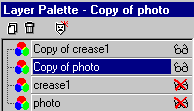
1. Using the Layer Palette, click on the Show/Hide toggle beside
each of the "Copy of photo" and "Copy of crease1" layers (to
show them), then click on the Show/Hide toggle beside each of
the "photo" and "crease1" layers (to hide them).
Click on the "Copy of photo" layer to make it your "active" layer.
Your Layer Palette should look like that shown on the left.
2. Now use the Selections > Select All menu option [CTRL+A] (to
select all of your image).
3. Click on the Effects > 3D Effects > Inner Bevel... menu
option. The system displays the Inner Bevel dialog box.
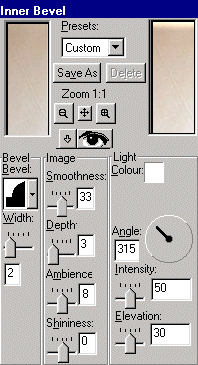
4. Leave the Inner Bevel dialog box settings as per the previous
settings, with the following exception:
Light
Angle = 315 degrees.
then to apply the settings, click on the [OK] button.
The system applies an Inner Bevel to the outside edges of your
front cover.
5. Deselect your selection [CTRL+D], then save your image
[CTRL+S].
Your image should look similar to that shown on the left.
6. To save this image as your FlipAlbum ® back cover, duplicate
the image [SHIFT+D], and save the duplicated copy as
"/tutorial/html/tutphoto/photobackcover.jpg".
This completes our tutorial. You can of course have a plain cover
on the back, or use another photo for it.